
Upload a file
Add PDFs, Word documents and pictures to your files.
Before you start: A PDF, Word document or picture on your device.
In this guide
1. Choose Upload
Select Upload at the top of the page, in the top line next to New folder.
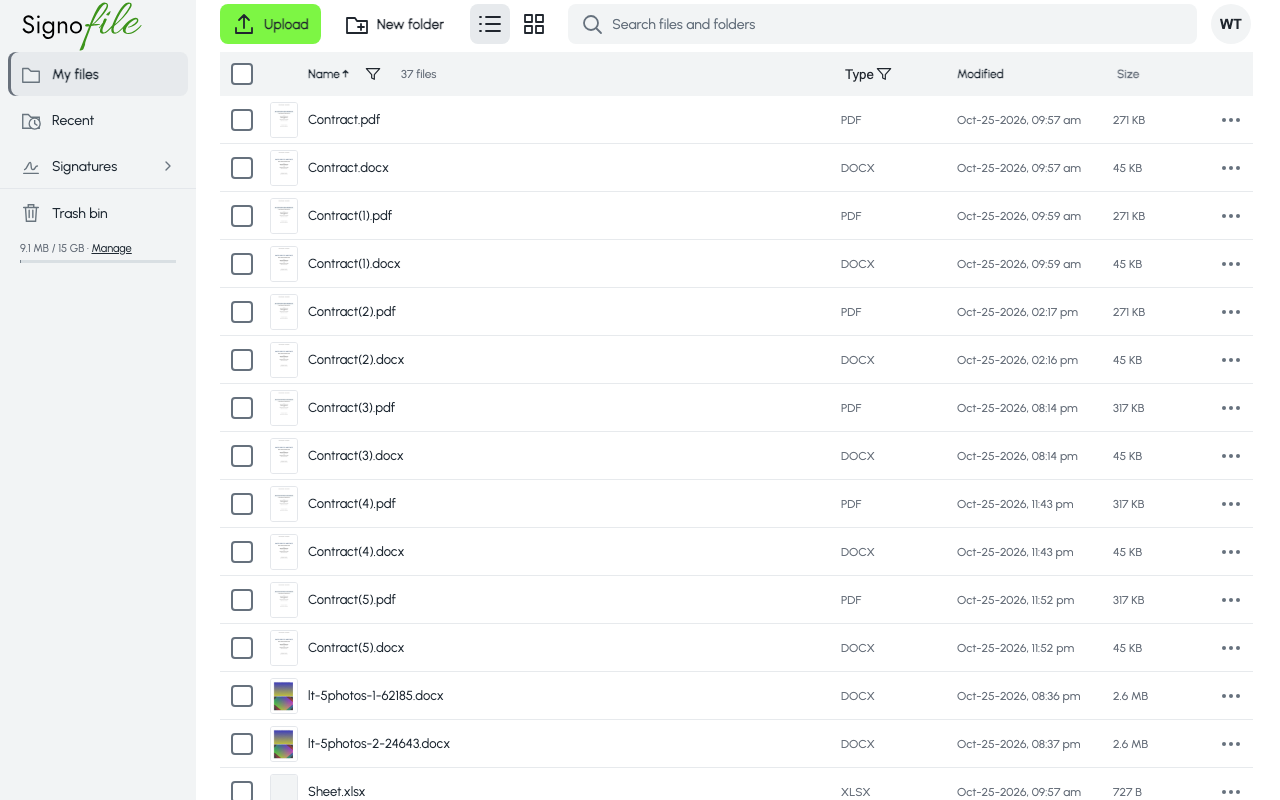
2. Pick your files
Choose one or more files. PDFs and Word documents are stored as they are. A picture is converted to a PDF: the upload window shows Converting to PDF while it works.
3. Wait for the upload
The window shows Uploading in progress, and Uploaded for each file that is in. Choose Cancel for one file or Cancel All to stop. When it says Uploading finished, the files are in your list.